
Appendix A: Keyboard Shortcuts Reference
Every key and command alias in Pingendum 2D in one place — the drafting-aid function keys, the editing shortcuts, and the short codes you type to start a tool.
There are two different ways to reach a command from the keyboard here, and knowing which is which makes the tables below much easier to read.
Keys are held combinations and function keys — Ctrl+S, F8. They are bound straight to a command, and only a small number of commands have one.
Aliases are the short letter codes you type — L for Line, CP for Copy. Almost every tool has one.
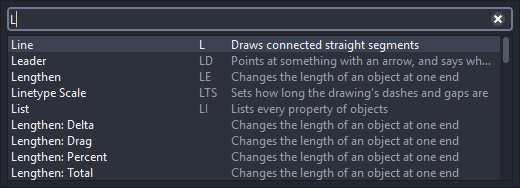
An alias is not a key binding. Typing a letter on the drawing opens Find a command with that letter already in it; keep typing and press Enter to run the best match. If you have used AutoCAD this will feel immediately familiar, and it is how most drawing actually gets started.
These are the defaults — you can change them
Every command's keys and alias can be changed in Edit ▸ Preferences (
Ctrl+,). Help ▸ Keyboard Shortcuts lists them as they currently stand, to read or print.The keys the drawing handles itself —
Enter,Esc,Space,BackspaceandDelete— cannot be reassigned.
How a letter reaches a command
This is the single most useful thing to understand about the keyboard in Pingendum.
| Situation | What a letter key does |
|---|---|
| Nothing running | Opens Find a command, pre-filled with that letter. Keep typing the alias, press Enter |
| A command is running | Picks that command's option with the same letter, as shown on the context bar |
So L Enter draws a line and O Enter starts Offset — but while Offset is already running, E picks its Erase option rather than starting Ellipse.
The running command owns the letters, and gives them back when it finishes.
File
| Action | Key | Alias |
|---|---|---|
| New Drawing | Ctrl+N | — |
| New from Template | — | — |
| Open | Ctrl+O | — |
| Save | Ctrl+S | — |
| Save As | Ctrl+Shift+S | — |
| Save as Template | — | — |
| Import DXF | — | — |
| Export as DXF | — | — |
Ctrl+P | — | |
| Export PDF | — | — |
| Purge | — | PU |
| Close Drawing | Ctrl+W | — |
| Recover Drawings | — | — |
| Start Page | — | — |
Edit
| Action | Key | Alias |
|---|---|---|
| Undo | Ctrl+Z | — |
| Redo | Ctrl+Y (Windows/Linux) · Ctrl+Shift+Z (macOS) | — |
| Cut | Ctrl+X | — |
| Copy | Ctrl+C | — |
| Copy with Base Point | Ctrl+Shift+C | — |
| Paste | Ctrl+V | — |
| Paste in Place | Ctrl+Shift+V | — |
| Delete | Delete or Backspace | — |
| Select All | Ctrl+A | — |
| Select Similar | — | — |
| Select by Properties | — | — |
| Find and Replace | Ctrl+F | FIND |
| Preferences | Ctrl+, | — |
Draw
Every one of these is started by typing its alias and pressing Enter, or by clicking its button on the tool palette. None has a direct key binding.
| Tool | Alias |
|---|---|
| Line | L |
| Circle | C |
| Arc | A |
| Polyline | P |
| Rectangle | R |
| Polygon | PG |
| Slot | SL |
| Ellipse | E |
| Spline | SP |
| Construction Line | CL |
| Ray | RA |
| Point | PT |
| Divide | DV |
| Measure | ME |
| Donut | DON |
| Revision Cloud | RC |
| Wipeout | WO |
Most of these have variations — Circle alone has six (Center–Radius, Center–Diameter, 2 Points, 3 Points, Tan–Tan–Radius, Tan–Tan–Tan). Hold or right-click the tool's palette button to pick one, or search for it by name (Circle: 3 Points).
See Drawing Basic Shapes and Expanding Your Shape Vocabulary.
Annotate
| Tool | Alias |
|---|---|
| Text | TX |
| Edit Text | ED |
| Dimension | DIM |
| Baseline Dimension | DB |
| Continue Dimension | DC |
| Leader | LD |
| Hatch | H |
| Field | FLD |
| Annotation Scales | — |
Dimension has seven variations: Linear, Aligned, Radius, Diameter, Angular, Arc Length and Ordinate. See Dimensioning a Drawing.
While Text or Leader is taking your typing, Ctrl+Enter finishes it — plain Enter just makes a new line.
Modify
| Tool | Alias |
|---|---|
| Move | M |
| Copy | CP |
| Rotate | RO |
| Scale | SC |
| Mirror | MI |
| Offset | O |
| Trim | T |
| Extend | EX |
| Fillet | F |
| Chamfer | CH |
| Break | BR |
| Join | J |
| Explode | X |
| Lengthen | LE |
| Stretch | ST |
| Array | AR |
| Align | AL |
| Polyline Edit | PE |
| Match Properties | MP |
| Convert to Spline | — |
| Convert to Polyline | — |
| Draw Order | — |
Blocks
| Command | Alias |
|---|---|
| Create Block | BL |
| Insert Block | I |
| Edit Block | BE |
| Define Attribute | ATT |
| Extract Attributes | — |
| Divide / Measure with Blocks | — |
Sheets
| Command | Key | Alias |
|---|---|---|
| Next Sheet | Ctrl+Page Down | — |
| Previous Sheet | Ctrl+Page Up | — |
| Viewport | — | VP |
| New Sheet | — | — |
| Page Setup | — | — |
| Print Sheets | — | — |
| Viewport Layers | — | — |
Those are AutoCAD's keys for moving between layouts. On macOS they are the same keys with Control (which macOS calls Ctrl, not ⌘).
Format
| Command | Alias |
|---|---|
| Units | UN |
| Linetype Scale | LTS |
| Drawing Scale | — |
| Text Styles | — |
| Dimension Styles | — |
| Point Style | — |
| Load Linetypes | — |
| Load Hatch Patterns | — |
Inquiry
| Command | Alias |
|---|---|
| Distance | DI |
| Area | AE |
| List | LI |
| Point Coordinates | ID |
These read a value without adding anything to the drawing; the answer appears at the right of the context bar with a Copy button. See Measuring Geometry.
View and the drafting aids
The drafting aids are the one group with real function keys. On macOS each also has an ⌥⌘ letter beside its F-key, because Mac keyboards hide the function keys behind fn.
| Action | Key | macOS also | Alias |
|---|---|---|---|
| Object Snap on/off | F3 | ⌥⌘S | — |
| Isometric plane | F5 | ⌥⌘I | — |
| Grid on/off | F7 or Ctrl+' | — | — |
| Ortho on/off | F8 | ⌥⌘O | — |
| Grid Snap on/off | F9 | ⌥⌘G | — |
| Polar on/off | F10 | ⌥⌘P | — |
| Snap Tracking on/off | F11 | ⌥⌘T | — |
| Zoom to Fit | Ctrl+0 | — | — |
| Zoom In | Ctrl++ | — | — |
| Zoom Out | Ctrl+- | — | — |
| Find a command | Ctrl+K | — | — |
| Tool Palette on/off | Ctrl+Shift+T | — | — |
| User Origin | — | — | UO |
| Rotate View | — | — | RV |
| Show Lineweights | — | — | — |
| Show Measurements | — | — | — |
| Appearance / High Contrast | — | — | — |
| Canvas colour | — | — | — |
F5 steps the isometric plane (left, top, right) rather than simply switching something on and off; the status bar names the plane each time. See Drafting Aids.
Help
| Command | Key |
|---|---|
| User Guide | F1 |
| Keyboard Shortcuts | — (Help menu) |
| Report a Problem | — |
| Show Log Folder | — |
| About Pingendum2D | — |
Help ▸ User Guide (F1) opens the guide built into the application — considerably more detailed than this website, with a page for every command, lessons, and task pages. While a command is running it opens at that command's page.
Keys the drawing handles itself
These work whatever is running, and cannot be reassigned.
| Key | What it does |
|---|---|
Enter or Space | Finishes the current step or command. With nothing running, repeats the last command |
Esc | Ends the running command; with nothing running, clears the selection |
U | Takes back the last point picked, without leaving the tool |
Delete or Backspace | Deletes the selection |
| Arrow keys | Nudge the selection by one grid snap step |
Shift, while picking a point | Flips Ortho for that moment |
| A letter | With nothing running, opens Find a command. While a command runs, picks that option |
Spacefinishes a command — it does not pan
SpaceandEnterdo the same job here, as they do in AutoCAD: confirm the current step, and with nothing running, repeat the last command.Panning is the middle mouse button or a two-finger scroll.
Mouse and trackpad
| Action | Mouse | Trackpad |
|---|---|---|
| Pick a point, select | Left-click | Click |
| Finish a command, or repeat the last | A quick right-click | Two-finger tap |
| Open the context menu | Hold the right button (¼ second; adjustable) | — |
| Pan | Drag with the middle button | Two-finger scroll |
| Zoom around the cursor | Wheel | Pinch |
| Zoom to Fit | Double-click the middle button | Two-finger double-tap |
A quick right-click finishes; a held right-click opens the menu. The quarter-second that separates them is Right-click hold in Preferences ▸ Cursor and Mouse.
Typed values and coordinates
While a command is asking for a point, start typing a number, @ or ( and the context bar's field takes over.
| You type | It means |
|---|---|
100,50 | The point x 100, y 50, from the origin |
@30,20 | 30 across and 20 up from the last point |
@50<45 | 50 from the last point, at 45° |
50<45 | 50 from the origin, at 45° |
50 | 50 in the direction the crosshair is pointing |
Any number can be arithmetic — @1200/3,0 and (900-18)/2<45 both work. Lengths take feet and inches (12'6") and fractions (3 1/2); angles take 45d30'15", 50g or 0.8r. The decimal separator is always ..
See Typing Coordinates and Values.
Next Steps
That is every key and alias. The final chapter explains the words.
Settings Reference
Every page of the Preferences window — Appearance, Canvas, Cursor and Mouse, New Drawings, Reports and Updates, and Shortcuts — plus the per-drawing settings in the Format menu.
Appendix B: Glossary of Pingendum Terms
Plain-English definitions for the drafting and Pingendum-specific words used throughout this documentation.