
Selecting Objects
Pick objects by clicking, by window and crossing boxes, and by property — and learn to read what the drawing is telling you about what is hovered, highlighted or selected.
Almost every editing command works on a selection — the set of objects you have picked out. So selecting well is the quiet skill that makes everything else fast.
Pingendum follows the conventions you will find in other CAD programs: click to pick, drag one way to catch what is wholly inside your box, drag the other way to catch everything it touches.
Prerequisites
- A drawing with something in it — see Drawing Basic Shapes.
Picking with the mouse
All of this works with no command running. There is no "select tool" to switch on; when nothing else is happening, the drawing is already in selection mode.
| What you want | How |
|---|---|
| Select an object | Click it |
| Add one to, or take one out of, the selection | Shift-click it |
| Select the object hidden underneath another | Click the same spot again |
| Everything wholly inside a box | Drag left to right — the box has a solid border |
| Everything inside or touching a box | Drag right to left — the box has a dashed border |
| Add a box's worth to what is already selected | Hold Shift while you drag the box |
| Clear the selection | Click empty space, or press Esc |
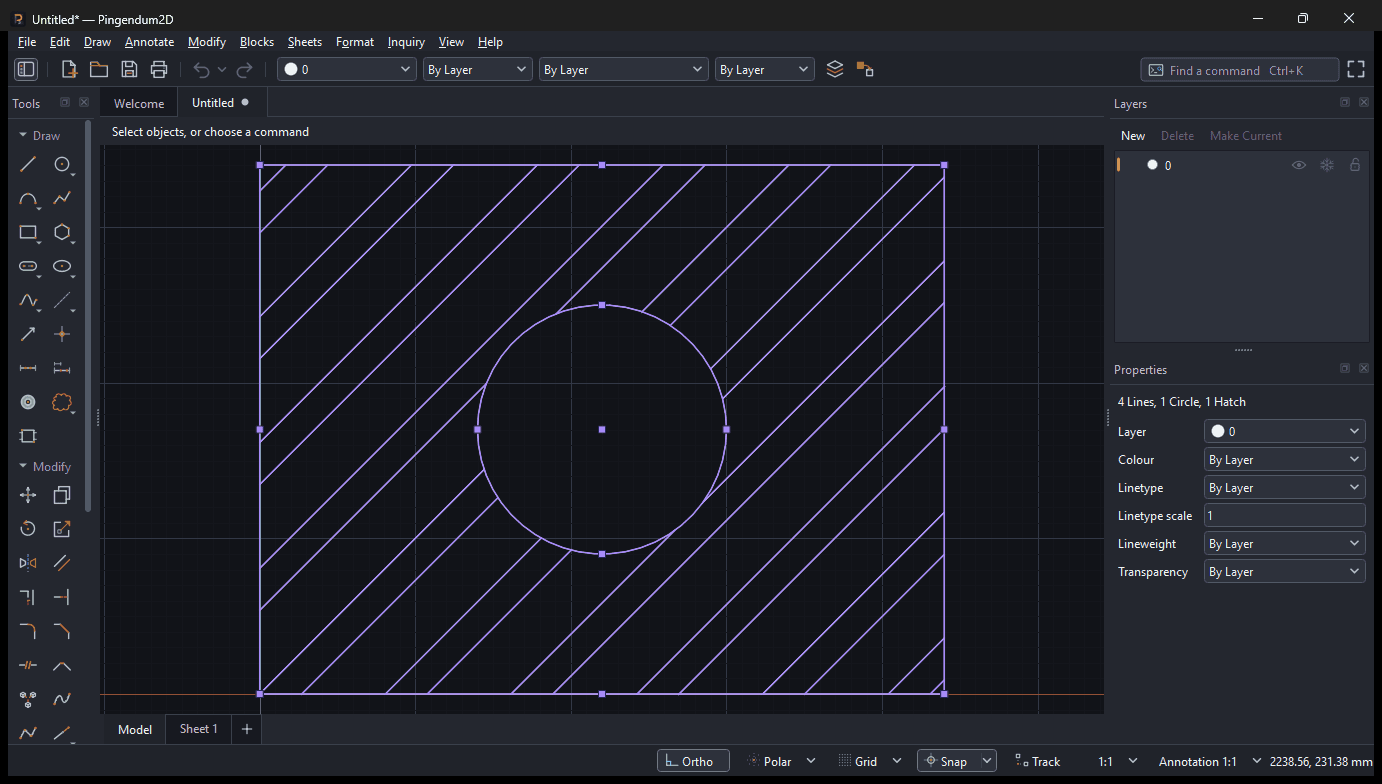
Window and crossing: the one to memorise
The direction you drag changes what you catch, and this trips up every newcomer once.
- Drag left to right — called a window. It catches only what is completely enclosed by the box. Use it to lift one component cleanly out of a crowded drawing.
- Drag right to left — called a crossing. It catches anything the box so much as touches. Use it to grab a whole run of wall, including the lines that carry on past your box.
The border tells you which one you are doing while you drag: solid for a window, dashed for a crossing.
Reading the drawing
Three different appearances, meaning three different things:
| What you see | What it means |
|---|---|
| An object brightens as the cursor passes over it | Hover — this is what a click would pick right now |
| An object drawn in violet, with small squares on it | Selected |
| The cursor is a small square with arms | A command is asking you to pick objects |
Those small squares on a selected object are its grips — handles you can drag. See Editing with Grips.
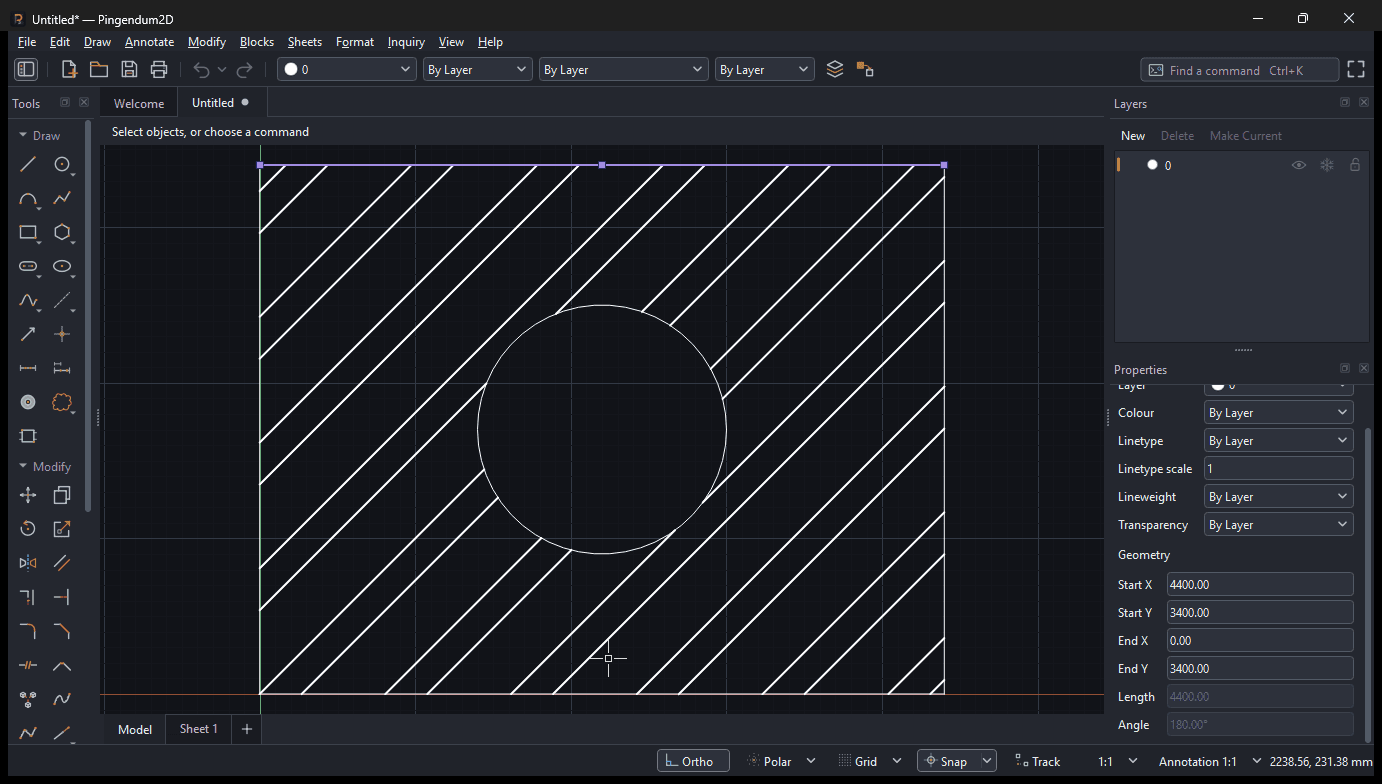
Colour describes the object, not its state
Apart from the hover and selection highlights, an object's colour, thickness and dash pattern describe what it is in the drawing — which layer it belongs to, how heavily it will print, whether it represents a hidden edge.
They say nothing about whether it is "solved" or "fully defined", because Pingendum 2D has no constraint solver to report such a thing. See What drafting means here.
Selecting without clicking
Clicking is not always practical. "Every circle on the Holes layer" is not something you want to pick by hand in a drawing with four hundred circles. Four commands do it for you.
Select All — Ctrl+A
Selects every selectable object in whichever model space or sheet you are looking at.
Objects on layers that are off or frozen are skipped — they are not drawn, so they are not selected.
Select Similar
Adds every object of the same type and on the same layer as what is already selected.
Select one door line, run Select Similar, and every line on the Doors layer joins the selection. It is also on the right-click menu.
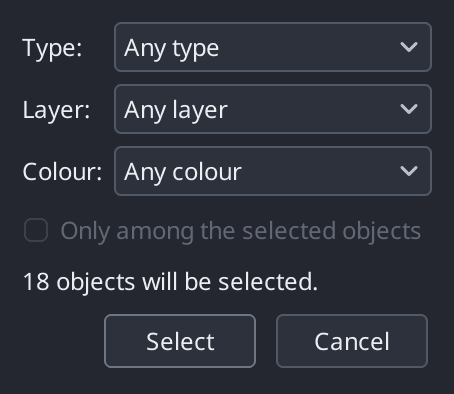
Select by Properties
Opens a dialog and selects by type, layer and colour — "every circle on the Holes layer", exactly as promised.
Select Last
Selects whatever the last command created — the copies Copy placed, the lines Offset drew.
Why it is useful: it lets you chain commands without hunting with the mouse. Offset a wall, run Select Last, then move exactly what you just made. (If you have since undone that command, it selects nothing.)
Objects that will not select
Two layer settings explain almost every case of "I can see it but I cannot click it":
- A locked layer stays visible, but nothing on it can be selected.
- A layer that is off or frozen is not drawn at all, and Select All ignores it.
That is the normal way to protect a survey base or a background drawing while you work over the top of it. See Working with Layers.
When grips disappear
Grips are drawn while 1,000 objects or fewer are selected. Select more than that and the little squares vanish.
The selection is still there, and every editing command still works on it. The limit is deliberate — drawing grips for tens of thousands of objects would make a big selection crawl.
Next Steps
With things selected, the next two chapters change them — by dragging their grips, or by running an editing command.
Next: Editing with Grips
Drafting Aids
The five status-bar helpers — Ortho, Polar, Grid Snap, Snap and Snap Tracking — plus the grid itself and isometric drafting, explained for someone meeting them for the first time.
Editing with Grips
Change geometry by dragging the small squares on a selected object — move an end, slide a whole line, resize a circle — with snaps, Ortho and typed values all working as you drag.