
Working with Layers
Organise a drawing with layers — colour, linetype and lineweight by layer, and the off, frozen and locked states that decide what you can still see, select and snap to.
A layer is a named group for the things in your drawing. Picture a stack of transparent sheets laid over one another: walls traced on one, furniture on another, dimensions on a third. Each sheet can be hidden, locked or coloured without touching the others.
In Pingendum 2D layers are also how a drawing looks: an object's colour, linetype and lineweight all come from its layer, unless you give that object one of its own.
That is why layers are worth setting up early. Putting centrelines, hidden detail and outline on separate layers is what lets you restyle, hide or protect a whole class of geometry in one click, instead of selecting it all again by hand.
Prerequisites
- Some geometry to organise — see Drawing Basic Shapes.
The Layers panel
Open it with the Layers button on the toolbar, or from the View menu. Layers and Properties are separate panels — drag either by its title to move or re-dock it.
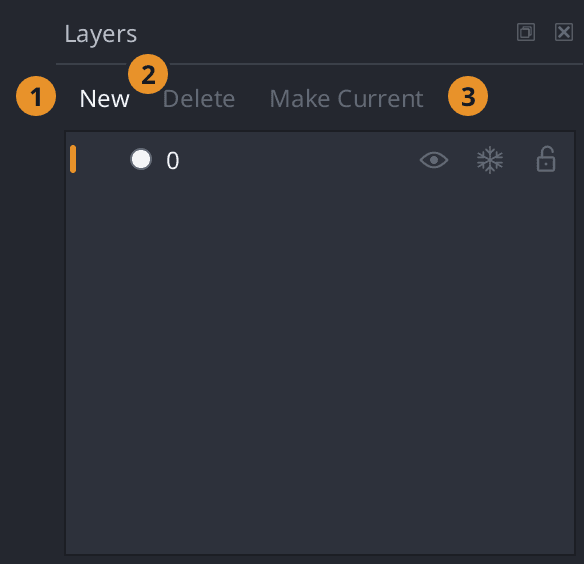
Three buttons sit along the top:
| Button | What it does |
|---|---|
| New | Adds a layer, named "Layer 1", "Layer 2" and so on, ready to rename |
| Delete | Deletes the selected layer — only when nothing is on it |
| Make Current | New objects will go on the selected layer |
Below them, one row per layer: layer 0 first, then the rest by name. Each row shows, left to right:
| On the row | What it is |
|---|---|
| An amber bar | Marks the current layer |
| A colour dot | The layer's colour. Click it to change |
| The name | With its linetype and lineweight alongside, where there is room |
| On, Freeze, Lock | An eye, a snowflake and a padlock. Click one to switch that state |
Right-click a row for everything else: Make Current, Rename, Isolate, Colour…, Linetype…, Lineweight…, Transparency… and Delete. Isolate hides every layer but that one — handy for a moment's peace in a crowded drawing.
To rename, double-click the name or press F2.
Every change is a single undo step.
The current layer
New objects are created on the current layer. That is the whole rule — and it is the one thing to set before drawing rather than after.
Click the space before a layer's colour dot, or select the row and click Make Current.
A frozen layer cannot be made current. Thaw it first.
A layer's properties
Each layer carries a colour, a linetype (the dash pattern), a lineweight (how thick it prints) and a transparency. All four are on the right-click menu; colour is also one click on the dot.
Changing a layer's colour restyles every object on it that has not been given a colour of its own. That is the quick way to make a whole class of geometry read differently — try it once and the value of layers becomes obvious.
Lineweights come from the standard DXF ladder that plotters and other CAD programs expect, so they survive the trip to another program.
Off, frozen and locked
These three are the reason layers are more than a colour scheme. They sound similar and behave quite differently.
| State | Drawn? | Can you select it? | Can you snap to it? |
|---|---|---|---|
| On (normal) | Yes | Yes | Yes |
| Off | No | No | No |
| Frozen | No | No | No |
| Locked | Yes | No | Yes |
Off simply hides the layer. Its geometry is still in the drawing — it is just not drawn, and while it is hidden you cannot pick it or snap to it. Use it to get something out of the way for a few minutes.
Frozen hides it and puts it further out of reach: frozen layers are skipped by the editing commands altogether, and a frozen layer cannot be made current. Use it for material the drawing should stop spending any time on.
Locked is the interesting one. The layer stays visible, but nothing on it can be selected or edited — and you can still snap to it. That is exactly what you want from a reference layer: a survey base or a consultant's drawing you are drawing against but must not disturb.
Try to edit something on a locked or frozen layer and Pingendum names the layer rather than failing silently:
Layer "Walls" is locked or frozen.
Adding and deleting layers
New adds a layer called "Layer 1", "Layer 2" and so on. Rename it straight away — "Walls", "Furniture", "Dimensions" — while you still remember what it is for.
Delete has three guards, and the message tells you which one you have hit:
- Layer
0cannot be deleted at all: Layer "0" cannot be deleted. - The current layer cannot be deleted: The current layer cannot be deleted. Make another layer current first.
- A layer with anything on it cannot be deleted: Layer "Detail" still has objects on it. Move or delete those objects first.
To clear out layers, linetypes and styles a drawing no longer uses, see File ▸ Purge.
Two layers that are not like the others
Layer 0 is the base layer that every drawing has. It cannot be deleted or renamed, though you can restyle it freely. Everything you draw lands here until you make another layer current.
Construction is created for you, in grey, the first time you draw a construction line or ray with the tool's Construction Layer option on (it is on unless you turn it off). Keeping that scaffolding on its own layer is what lets you switch the whole lot off in one click when the real geometry is drawn. See Construction Line.
Layers on sheets
A layer's on/off state is a property of the drawing as a whole. But on a sheet, each viewport can hide layers for itself — so the same model can show walls only in one viewport and walls plus services in another.
That is Sheets ▸ Viewport Layers. See Model Space and Sheets.
Printing follows what is shown: a layer that is off or frozen is not drawn, so it does not reach the paper either. See Plotting and Printing.
Next Steps
You can now:
- Set the current layer, and predict where new objects will land.
- Give a layer a colour, linetype and lineweight, and restyle everything on it at once.
- Tell off, frozen and locked apart, and pick the right one — locked for a reference you still want to snap to.
- Delete a layer, and understand why Pingendum sometimes refuses.
- Recognise the two layers that behave differently from the rest.
Next: Working with Blocks
Measuring Geometry
Read distances, angles, areas, coordinates and full object properties with the four Inquiry tools — answers appear in the context bar with a Copy button, and nothing is added to the drawing.
Working with Blocks
Define a named group of objects once and place it as often as you like — then change the definition and every copy follows. Create Block, Insert Block, Edit Block, layers, and exploding.