
Plotting and Printing
Put a drawing on paper or into a PDF — printing the model with an area and a scale, printing laid-out sheets at 1:1, and what reaches the paper that the screen does not.
Sooner or later the drawing has to leave: a PDF to email, or paper to work from. ("Plotting" is the traditional drafting word for printing a drawing — it comes from the pen plotters that used to do the job.)
There are two routes, and which you want depends on whether you made sheets.
| You have | Use | What comes out |
|---|---|---|
| Just the model | File ▸ Print (Ctrl+P), or File ▸ Export PDF… | The model, at a scale you choose or fitted to the paper |
| Laid-out sheets | Sheets ▸ Print Sheets | Each sheet on its own paper, exactly as laid out, at 1:1 |
Prerequisites
- A drawing you want on paper. Setting up layers first is worth it, because layers decide what reaches the paper.
Printing the model — Ctrl+P
File ▸ Print prints what the model shows. File ▸ Export PDF… opens the same dialog, writing to a PDF file instead of a printer.
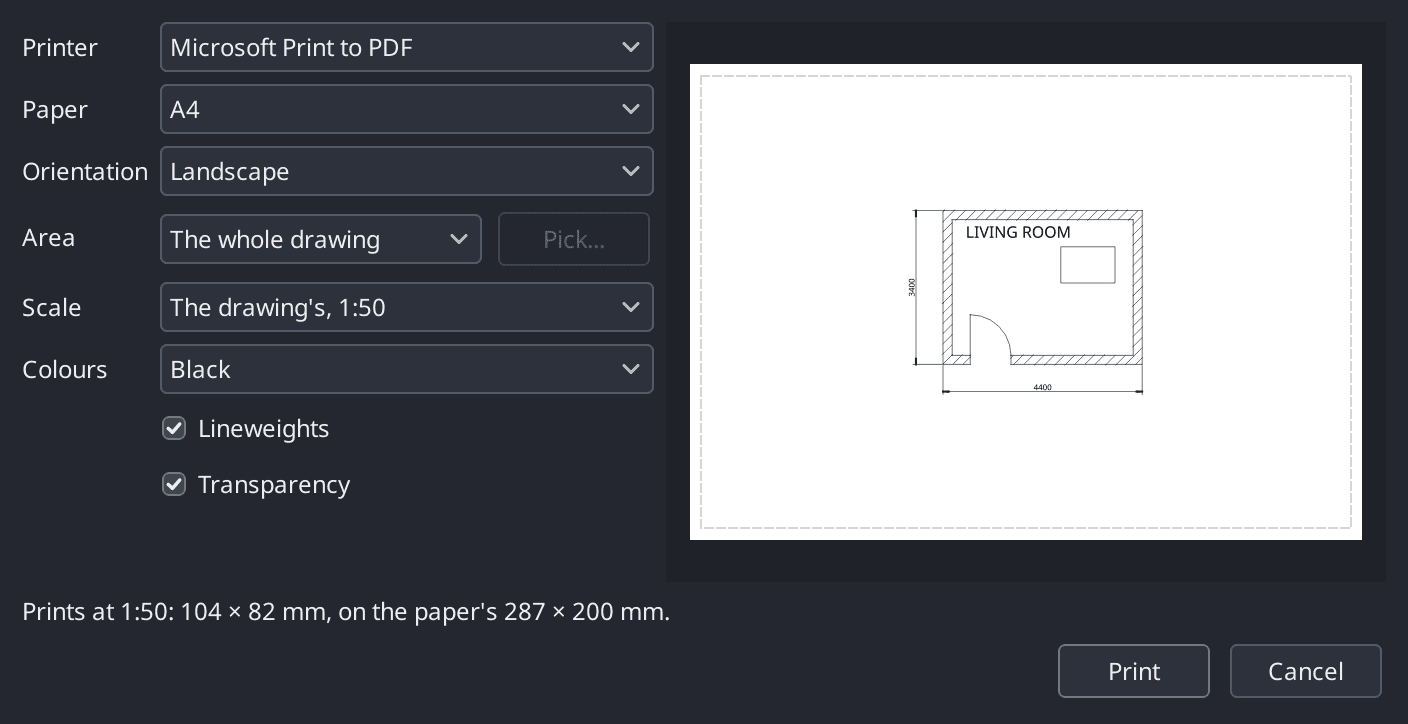
| Setting | What you choose |
|---|---|
| Printer | A printer, or a PDF file |
| Paper, orientation | The paper's size and which way up it goes |
| Area | The whole drawing, what the window currently shows, or a window you pick — choose a window and press Pick… to click its two corners |
| Scale | The drawing's own scale, or Fit to paper |
| Colours | Black, greyscale, or as drawn |
| Lineweights, transparency | Whether each of them prints |
The preview shows the paper, and the line beneath it tells you the printed size and whether it fits. Check that line before committing anything to paper.
Your choices are saved with the drawing, so the next print of the same drawing starts where you left off.
Fit to paper, or a real scale?
Fit to paper is for a check print — something to scribble on. It makes the drawing as large as the paper allows, at whatever ratio that happens to be.
A scale is for a drawing someone will measure off. If it has to be read at 1:50, print it at 1:50.
Printing laid-out sheets
If you have built sheets — see Model Space and Sheets — print those instead. A sheet prints its paper at 1:1, exactly as you laid it out, because the scaling already happened inside its viewports.
Sheets ▸ Print Sheets does several at once:
- Tick the sheets you want (All and None are there to help).
- Choose the printer — or PDF file, and whether you want one PDF or one per sheet.
- Click Print or Export.
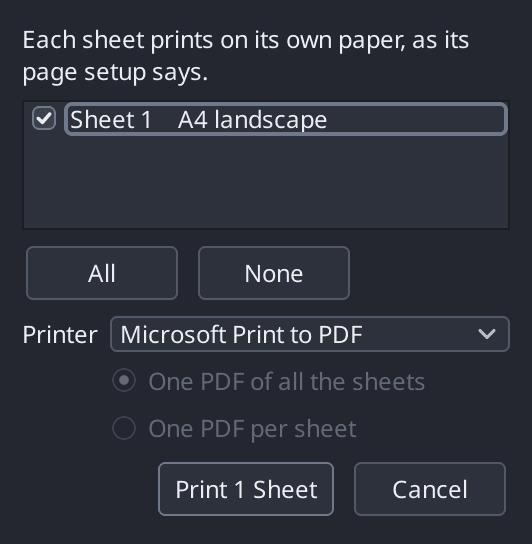
Each sheet's paper size, orientation and colour handling come from Sheets ▸ Page Setup (also on the sheet tab's right-click menu), not from this dialog.
The title block
Pingendum 2D does not generate a title block for you. You draw it on a sheet — border, boxes and fixed words — and let fields fill in the parts that change by themselves: sheet number, sheet count, file name, date, scale.
That is covered step by step in Attributes and Fields. Save the result as a template (File ▸ Save as Template) and every future drawing starts with it.
What reaches the paper
A printed sheet is not a screenshot. Three rules explain the differences.
Layers decide what is on it. A layer that is off or frozen is not drawn, so it does not print either. That is the normal way to keep setting-out geometry on screen but off the paper: put it on its own layer and freeze that layer before printing.
Geometry scales; annotation is already paper-sized. Text, dimension text and arrows are sized in paper millimetres and multiplied by the scale as they are drawn, so they come out the same physical size whatever the drawing scale is. That is what makes a sheet readable at 1:5 and at 1:200. See Styles and Annotation Scales.
Lineweight becomes real. On screen a lineweight is an approximation of thickness. On paper it is the actual millimetre value, so a 0.5 mm line measures 0.5 mm with a ruler.
White lines print black
Anything drawn in white is printed black, since white ink on white paper is nothing at all.
It means a drawing set up for a dark canvas still plots legibly, without you recolouring anything first. Choosing Colours: Black does the same for every colour at once.
Checking before you print
The preview in the Print dialog is the fastest check available, and it costs nothing:
- It uses the same renderer as the real output, so what you see is what you get.
- The line under the preview gives the printed size and whether it fits the paper.
- Paper, orientation, area and scale can all be changed with the preview in front of you.
It is also the quickest way to check a sheet you are about to export as a PDF — same rules, no file written.
Next Steps
You can now:
- Print the model at a chosen scale, or fit it to the paper for a check print.
- Print laid-out sheets, singly or in a batch, to paper or to PDF.
- Predict what layers keep off the sheet.
- Understand why dimension text does not shrink when the scale does.
- Read the preview before spending any paper.
That completes the drawing's journey from an empty grid to a sheet someone else can work from. The reference chapters follow: every setting in one place, then every shortcut, then a glossary.
Model Space and Sheets
Draw at full size in model space, then lay that drawing out for printing on sheets — with viewports showing the model at a chosen scale, their own layer visibility, and a title block around them.
Exchanging Drawings as DXF
Open drawings from other CAD programs and send yours back out — what DXF is, what comes across in each direction, and what to do about DWG files.