
Saving and Managing Projects
Save your work, spot unsaved changes, reopen drawings, start from a template, and get work back after a crash.
Everything you draw lives only in memory until you save it. This chapter covers saving, reopening, templates, and the safety net underneath them all.
Prerequisites
- A drawing open with something in it.
Saving for the first time
Press Ctrl+S, or choose File ▸ Save.
A brand-new drawing has nowhere to live yet, so this opens a Save As dialog — your operating system's normal save dialog, filtered to Pingendum Drawing (*.pingdrw).
- Choose a folder and type a name.
- Click Save.
What happens. Pingendum writes a .pingdrw file where you chose, adding the extension if you left it off. The tab takes the file's name instead of "Untitled".
How it writes it is worth a line, because it protects you: the new file is written beside the old one and then swapped in. A save that fails part way leaves your previous file exactly as it was.
.pingdrwis the only format Pingendum 2D saves toYou can also send a drawing out as DXF (File ▸ Import DXF… and File ▸ Export as DXF… — see Exchanging Drawings as DXF), and print it to PDF (File ▸ Export PDF…) or paper (
Ctrl+P). DWG is not supported in this release.You may also come across
.pingendumfiles. That is the format the full 3D product writes, and the Open dialog accepts it so that drawings saved before the two products separated still open.
Saving again
Once a drawing has a file, Ctrl+S simply saves it. No dialog, no prompt. This is the one you will press constantly — make it a habit.
To save a copy elsewhere, or under a different name, use File ▸ Save As (Ctrl+Shift+S). From then on, the tab is that new file.
A drawing you opened from a DXF saves as a drawing: the DXF file is never written over.
Spotting unsaved changes
Look at the drawing's tab, up at the top. A dot where the close button normally sits means there are unsaved changes. Save, and the dot goes.
Closing with unsaved changes
Close a tab with a dot on it — or quit with one open — and Pingendum asks first:
Unsaved Changes Save changes to bracket?
Three buttons, with Save as the default:
- Save — writes the file, then closes. If the drawing has never been saved you get the Save As dialog, and cancelling there cancels the close too, so nothing is thrown away by backing out.
- Discard — closes and loses the changes.
- Cancel — leaves the drawing open and untouched.
The same prompt guards every way out: the tab's ×, closing the window, and quitting.
The safety net: recovery copies
The close prompt covers you when you close something on purpose. Recovery copies cover everything else — a crash, a power cut, a laptop that runs out of battery.
A minute after any change, Pingendum writes a recovery copy of every unsaved drawing into a folder of its own. Two things are worth knowing:
- It never touches your file. Your
.pingdrwis only ever written by a real Save. - A clean exit clears the copies. So a copy that survives is one nobody said goodbye to.
Getting work back
If Pingendum did not close properly, the next start shows a window headed "Pingendum2D didn't close properly", listing each kept drawing with its picture, where it is saved, how many objects it holds, and when its copy was made.
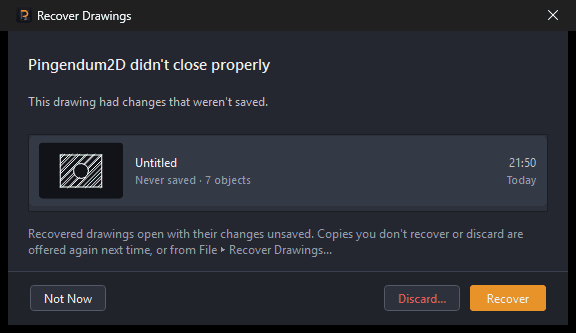
- Tick the drawings you want back — click a row, or press
Space. - Click Recover (Recover Selected when there are several). They open in tabs of their own, still unsaved.
- Save each one where you want it.
Discard… deletes the copies, after asking. Not Now keeps them all and offers them again next time.
Reaching the list on purpose
File ▸ Recover Drawings… opens the same list at any time, so a copy you postponed is never stranded behind a crash you would have to reproduce. It is greyed out when there is nothing to recover.
Saving is what clears a copy
A real
Ctrl+Sis the checkpoint the whole chain hangs from: once the work is in your own file, the recovery copy is not worth keeping, so it goes.
Starting from a template
A template is a drawing used as a starting point — your layers, styles, units and title block already in place, so you do not set them up again every time.
- File ▸ New from Template lists what is available: Pingendum2D Standard, plus any of your own.
- File ▸ Save as Template turns the drawing you are in into one.
- Which template
Ctrl+Nuses is set in Preferences ▸ New Drawings, where Open Templates Folder also shows you where they are kept.
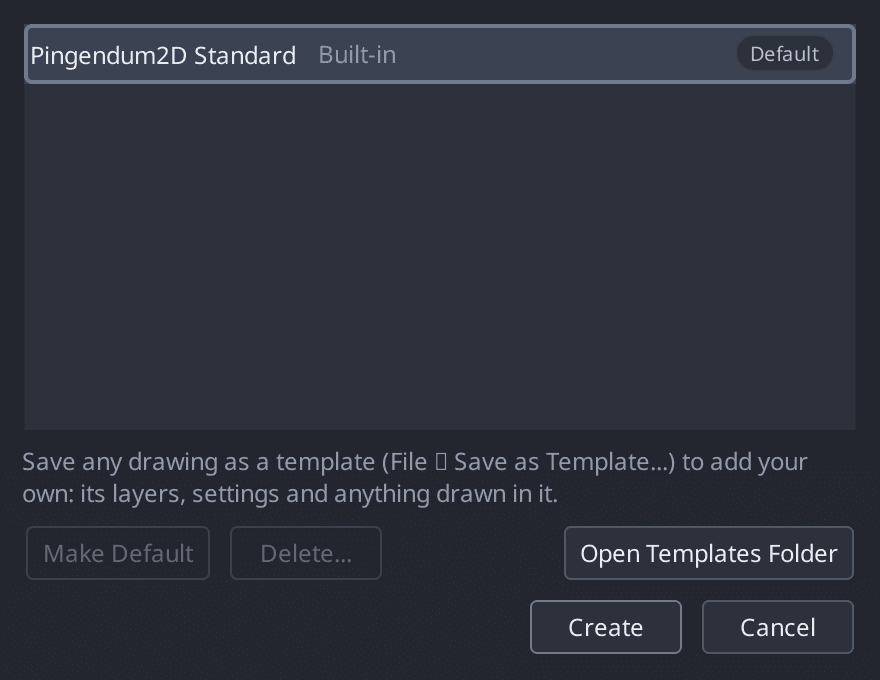
Worth doing early. The first time you set up layers and a title block the way your office wants them, save it as a template. Every drawing after that starts right.
Tidying a drawing before sending it
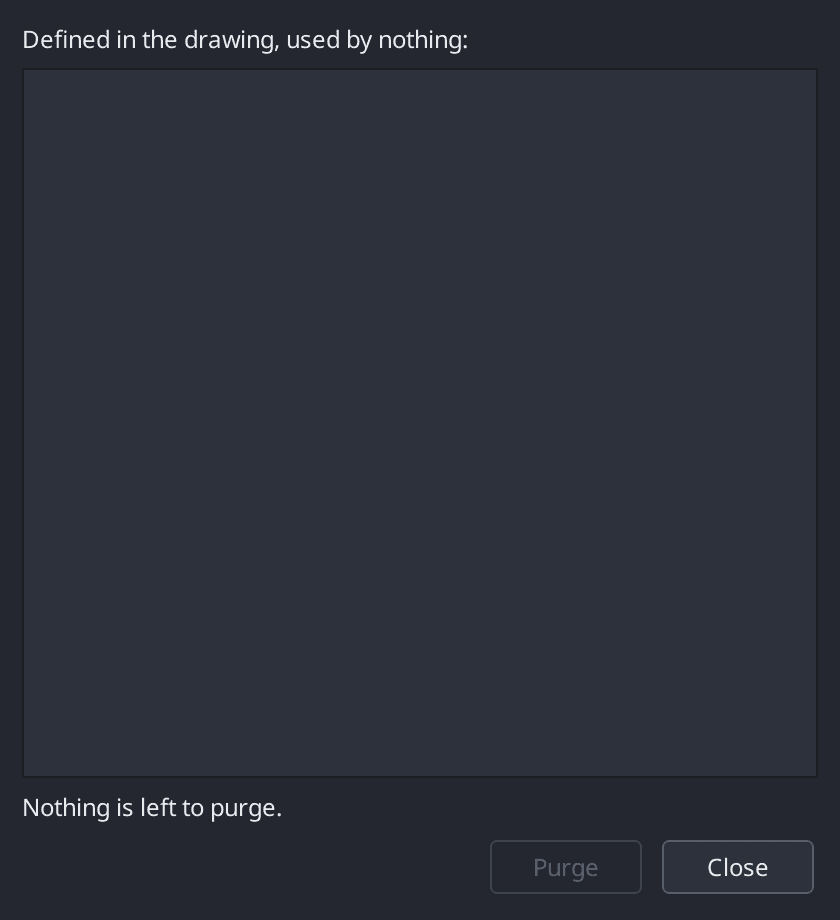
File ▸ Purge (PU) removes layers, blocks, linetypes, styles and hatch patterns that nothing is using.
Unused definitions travel with a file and pile up quietly, especially after pasting from other drawings, so this is worth running before a drawing leaves your hands.
Opening a drawing
Press Ctrl+O, or File ▸ Open, and pick a .pingdrw file (or a .dxf — it opens as a new drawing).
Open and New always make a new tab. Neither replaces what you are working on, and neither is blocked by a command being half finished — whatever that command had in flight simply stays where it was, in its own tab, waiting for you.
If the drawing is already open, Pingendum goes to that tab rather than opening a second copy.
If a drawing will not open
A drawing saved by a newer version of Pingendum 2D cannot be opened by an older one. You will see: "This drawing was saved by a newer version of Pingendum2D. Update Pingendum2D to open it."
Update the program, or ask whoever sent it to export a DXF.
Recent drawings
Every drawing you open or save joins the Recent Drawings list on the Welcome tab, most recent first, with a thumbnail. The list is remembered between sessions, so picking up where you left off is two clicks: Welcome tab, then the drawing at the top.
A drawing that has been moved or deleted stops being listed.
Next Steps
You can now:
- Save a new drawing, and tell Save from Save As.
- Spot the unsaved-changes dot, and predict the Save / Discard / Cancel prompt behind it.
- Get work back after a crash, and understand why saving clears a recovery copy.
- Start from a template, and make one of your own.
- Purge what a drawing no longer needs before sending it.
- Find recent drawings from the Welcome tab.
Next: Settings
Exchanging Drawings as DXF
Open drawings from other CAD programs and send yours back out — what DXF is, what comes across in each direction, and what to do about DWG files.
Settings Reference
Every page of the Preferences window — Appearance, Canvas, Cursor and Mouse, New Drawings, Reports and Updates, and Shortcuts — plus the per-drawing settings in the Format menu.