
Settings
Every page of the Settings dialog — application preferences, the current drawing's settings, and the defaults new drawings start from — with what each setting does and its default.
Most of what you can configure in Pingendum 2D lives in one dialog: Settings. This chapter is a reference to every page in it — skim the overview, then come back to the page you need.
Opening Settings
- Edit → Settings… (
Ctrl+,). On macOS it's in the application menu, where macOS puts preferences. - Several commands open it straight at the relevant page:
| Command | Opens at |
|---|---|
| Right-click the Grid toggle in the status bar | Current Drawing → Grid and snap |
| File → Drawing settings… | Current Drawing → Units and precision |
| File → Sheet and title block… | Current Drawing → Page and output |
| Edit keyboard shortcuts… (command search) | Application → Keyboard shortcuts |
| Recovery settings… (command search) | Application → Files and recovery |
| Grid and snap settings… (command search) | Current Drawing → Grid and snap |
Otherwise it reopens on the page you last used.
How the Dialog Works
The pages are listed down the left in four groups, and each page says at the top what its settings apply to:
| Group | Applies to | Scope label |
|---|---|---|
| Application | Pingendum itself, in every drawing | Application-wide |
| Current Drawing | The drawing in the active tab, saved inside that drawing's file | Saved in this drawing · (drawing title) |
| Defaults for New Drawings | Every drawing you create from now on — existing drawings keep their own settings | Used for new drawings |
| Advanced | Diagnostics and resets | — |
- Search settings… at the top of the list filters the pages by any word in a page's title, description or setting names — type "snap" or "autosave" to jump there.
- Changes are staged: nothing takes effect until you press Apply (keep the dialog open) or OK (apply and close). Cancel discards everything you changed. Apply is greyed out until something has changed.
- Restore page defaults… at the bottom left puts every setting on the current page back to its factory value — also staged until Apply or OK.
- If a value can't be applied, the reason appears above the buttons instead of the dialog closing.
- With no drawing open, the Current Drawing pages say "Open a drawing to edit these settings." With a read-only drawing open, they show its settings but can't change them.
Application
General
| Setting | Default | What it does |
|---|---|---|
| Startup | Welcome screen | What opens when Pingendum starts: Welcome screen, New blank drawing, or Reopen last session |
| Recent drawings to show | 20 | How many drawings the Welcome screen's Recent Drawings list keeps (1–100) |
| Offer recovery on startup | On | Whether unsaved work from a crash is offered when Pingendum starts — see Saving and Managing Projects |
Display
| Setting | Default | What it does |
|---|---|---|
| Canvas background (#RRGGBB) | #0b0d10 | The drawing area's background colour |
| Show constraint glyphs | Off | Whether relation badges are drawn over the geometry — the same switch as View → Constraint icons |
Input
| Setting | Default | What it does |
|---|---|---|
| Reverse mouse wheel zoom | Off | Flips which way the wheel zooms — also View → Navigation |
| Hold Space to pan | On | Pan by holding Space and moving the mouse — also View → Navigation |
| Picking tolerance | 5 px | How close, in screen pixels, a click must be to pick something (1–30) |
| Dynamic numeric input | On | The value fields beside the cursor while drawing — the same switch as F12 |
| Auto horizontal/vertical inference | Off | The same switch as Auto H/V in the status bar — see Degrees of Freedom and Auto H/V |
Drafting aids
| Setting | Default | What it does |
|---|---|---|
| Cursor mode | Free | Free, Ortho or Polar tracking — the same state as F8 and F10 |
| Polar angle increment | 15° | The step Polar snaps to (0.1°–180°) — see Drafting Aids |
Object snap
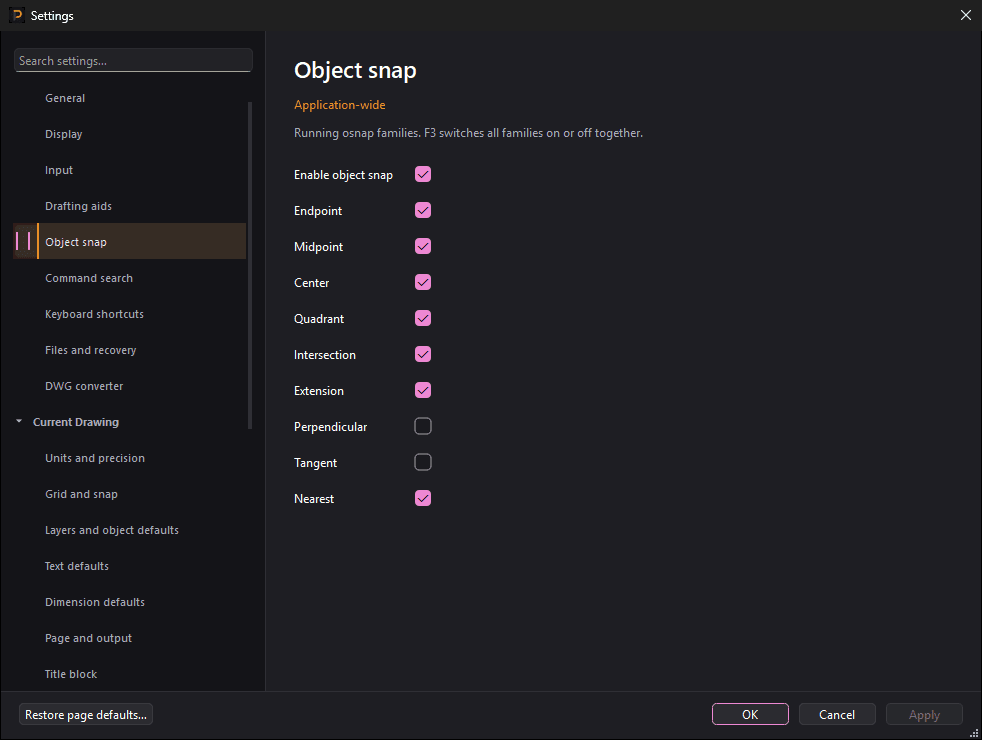
The running object snaps. Enable object snap is the same master switch as F3; the rest turn individual families on or off. See Snapping While You Draw.
| Setting | Default |
|---|---|
| Enable object snap | On |
| Endpoint, Midpoint, Center, Quadrant, Intersection, Extension, Nearest | On |
| Perpendicular, Tangent | Off |
Command search
| Setting | Default | What it does |
|---|---|---|
| Show disabled commands | On | Whether Find a command (Ctrl+Shift+P) lists commands that can't run right now |
| Show command IDs | Off | Shows each command's internal id beside its name — useful when reporting a problem |
Keyboard shortcuts
Change the key for any command:
- Find the command — Find a command… above the list filters it by name or id.
- Select it, click in Shortcut, and press the new key combination. Clear the field to remove its shortcut.
- Restore selected command default puts one command's original key back; Restore page defaults… puts them all back.
Two commands can't share a key — a conflict has to be resolved before Apply will accept the change. The keys the drawing area handles itself — Enter, Esc, Backspace and Delete — can't be changed. Help → Keyboard shortcuts… (Shift+?) shows the keys currently in force; Appendix A lists the defaults.
Files and recovery
| Setting | Default | What it does |
|---|---|---|
| Enable autosave | On | Take recovery snapshots of drawings with unsaved work |
| Autosave interval | 30 seconds | How often (5 seconds to 24 hours) |
| Keep previous save as .bak | On | Each Save keeps the file it replaced alongside, as .bak |
| Recovery location | — | Where snapshots are stored, for reference |
| Open recovery browser | — | Lists recoverable drawings at any time |
See Saving and Managing Projects for how recovery works.
DWG converter
DWG files are converted by LibreDWG — dwg2dxf to import, dxf2dwg to export. Leave dwg2dxf program empty to use a converter Pingendum ships or finds installed, or enter its path (Browse... helps). Status says what was found: "Not found", "Import only" when dxf2dwg isn't beside it, or both programs' locations. See Exchanging Drawings as DXF.
Current Drawing and Defaults for New Drawings
These two groups have the same pages. Current Drawing changes the open drawing, and is saved in its file. Defaults for New Drawings changes what every new drawing starts with. Title block is only under Current Drawing.
Units and precision
"Display precision never rounds geometry. Changing units does not rescale existing geometry."
| Setting | What it does |
|---|---|
| Drawing unit | Millimetres, Metres, Inches or Feet — what the numbers in the drawing mean |
| Length decimals / Angle decimals / Coordinate decimals | How many decimal places lengths and dimension labels, angles, and the status-bar coordinates show |
| Point coincidence tolerance | How close two points must be to count as the same point |
| Direction tolerance (radians) | How close two directions must be to count as the same direction |
| Offset tolerance | The precision Offset works to |
| Limit drawing extent | Off by default. On: set Left, Bottom, Right and Top to bound the drawing |
Changing the unit doesn't resize anything: existing geometry keeps its size, and only the unit its measurements are shown in changes.
Grid and snap
The same settings as right-clicking the Grid toggle — see Drafting Aids: Show grid, Snap to grid, Adaptive display, Minor spacing, Major line every, Match displayed grid spacing, Fixed snap increment, Arrow-key nudge, and Axis/origin capture radius.
Layers and object defaults
Current layer — which layer new geometry goes on, the same as Make current on the Layers tab. Everything else about layers is on the Layers tab — see Working with Layers.
Text defaults
What new notes start with — see Working with Text:
| Setting | What it does |
|---|---|
| Default style | The text style new notes use |
| Paper text height | Height on the plotted sheet, in mm |
| Rotation (radians) | The angle new notes start at |
| Horizontal alignment | Left, Center or Right |
| Style font family / bold / italic | For each text style in the drawing. Drafting font is Pingendum's own; a font the drawing names but this computer doesn't have is listed as (unavailable). Changing a style also changes the notes that use it |
Dimension defaults
How dimensions look, in paper millimetres, on screen and in print. Decimal places come from Units and precision.
| Setting | What it does |
|---|---|
| Text height | Height of dimension labels |
| Arrow length | Length of the arrowheads |
| Arrow style | Filled arrow, Open arrow or Tick |
| Extension line offset | Gap between the geometry and the start of an extension line |
| Extension line overrun | How far extension lines run past the dimension line |
| Dimension text gap | Space around the label |
Page and output
The sheet used for printing and PDF export — see Plotting and Printing: Paper size, Landscape, Scale (drawing units/mm; 0 = fit), Include construction geometry, Include dimensions, Include text, Left margin and Other margins.
Title block (Current Drawing only)
The document information printed with the sheet: Title, Creator, Description, Legal owner, Drawing number, Revision, Sheet number, Document type, Approved by and Date of issue (YYYY-MM-DD). Plotting and Printing says which of them appear on the sheet.
Use current drawing (Defaults for New Drawings only)
Use current drawing settings as defaults copies the open drawing's units, grid, layers, lettering, dimensions and page setup into the defaults for new drawings. Geometry and title-block information aren't copied, and existing drawings keep their own settings. Like everything else, it takes effect on Apply or OK.
Advanced
Diagnostics
- Log tool interactions — off by default. Records how tools are used, for troubleshooting.
- Copy diagnostics — copies the app, Qt and platform versions to the clipboard, ready to paste into a problem report.
Reset
Each button asks for confirmation, and takes effect on Apply or OK:
| Button | What it resets |
|---|---|
| Reset window layout | The command rows, panels and window arrangement |
| Reset application preferences | Every Application page |
| Reset new drawing defaults | Every Defaults for New Drawings page |
| Reset current drawing settings | Every Current Drawing page. Not shown for a read-only drawing. This one can be undone like an edit |
Next Steps
You now know how to:
- Open Settings, directly or at the page a command needs
- Tell application preferences from the current drawing's settings and the defaults for new drawings
- Stage changes and apply, cancel or restore them
- Find the page for units, grid, text, dimensions, the sheet, snaps, shortcuts, autosave and DWG