
Precision Object Snaps
Catch exact points on what you have already drawn — ends, middles, centres, quadrants, crossings, perpendicular and tangent points — as running snaps or for one pick only.
An object snap is the cursor's ability to latch onto an exact point on something you have already drawn — the precise end of a line, the precise centre of a circle — instead of the pixel your hand happened to land on.
It sounds like a small convenience. It is not. In a program with no constraint solver, this is the mechanism that makes geometry exact. A line whose end snapped to another line's end genuinely meets it, down to the last decimal place. A line that merely looks close does not — and a trim, join, hatch or DXF export later on will notice the gap even when your eyes cannot.
Prerequisites
- You can draw a line and a circle — see Drawing Basic Shapes.
Turning it on
Snap is a button on the status bar. Click it, or press F3 (on macOS, ⌥⌘S works too). A button that is on has an outline round it.
What to expect. While a command is asking for a point, move the cursor near something already drawn. A marker appears on the exact point the cursor will catch, with its name beside it — "Endpoint", "Midpoint" and so on. Click while that marker shows, and your point lands exactly there.
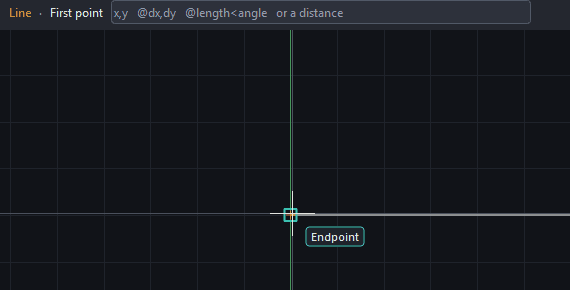
The ten kinds of point you can catch
| Snap | Catches | Type for one pick |
|---|---|---|
| Endpoint | The ends of lines, arcs and polyline segments | end |
| Midpoint | The exact middle of a line, arc or segment | mid |
| Center | The centre of a circle, arc or ellipse | cen |
| Quadrant | The top, bottom, left and right points of a circle or arc (0°, 90°, 180°, 270°) | qua |
| Node | A point object — see Point | nod |
| Insertion | Where a piece of text sits, or where a block was inserted | ins |
| Intersection | Where two objects cross | int |
| Perpendicular | The spot that makes a square corner with the point you came from | per |
| Tangent | The spot on a circle, arc or ellipse where a line just touches it | tan |
| Nearest | The closest point anywhere along an object | nea |
You choose which of them are active from the small arrow beside Snap on the status bar.
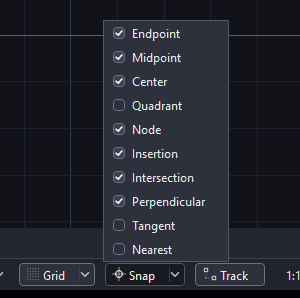
Three of them are off to begin with
Quadrant, Tangent and Nearest start switched off, because they fire so often that they get in the way of ordinary drawing.
Turn them on when you need them — or better, use the one-pick form described next, which is what they are really for.
Asking for one snap, for one point only
Leaving every snap running makes the cursor jumpy in a busy drawing: it keeps catching points you did not mean. The better habit is to ask for exactly one kind of snap, for exactly the next point.
How: click the input box in the context bar, type the snap's name, and press Enter. The first three letters are enough — end, mid, cen, int, per, tan, qua, nod, ins, nea.
Why you have to click the box first. While a command is running, a letter typed straight onto the drawing is read as one of that command's option keys — C means Close during Line, for example — so it never reaches the typed-input box. Only a digit, ., -, +, @ or ( opens that box on its own. A snap name begins with a letter, so it needs the click.
The other way: hold the right mouse button down on the drawing and choose Snap To from the menu that appears. (A quick right-click finishes the running command instead. How long the hold needs to be is set by Right-click hold in Preferences ▸ Cursor and Mouse.)
What to expect. A one-pick snap beats whatever else is running, applies to the next point only, then gets out of the way. You can see it has taken effect in the context bar, which changes from Next point to Perpendicular only: Next point.
This is the precise, deliberate way to work: leave Endpoint and Midpoint running all the time, and call per or tan by name on the rare occasions you want them.
How Pingendum decides which point you meant
While a command asks for a point, Snap looks at everything within a small circle around the cursor — the snap aperture, 10 pixels unless you change it — for the kinds of point you have switched on. The nearest one wins, and its marker and name appear.
When several helpers disagree, this is the order:
- A typed point beats everything. Type
1200,400and nothing will snap it elsewhere. - A snap beats Ortho's and Polar's directions, so your point lands on real geometry rather than on a tidy angle.
- Ortho and Polar decide the direction when no snap is within reach.
Holding Shift turns Ortho off for that moment — see Drafting Aids.
Snap tracking: lining up with points you are not clicking
What it is. A way to place a point that is level with one thing and in line with another — without drawing any construction lines to measure from.
How to use it:
- Turn on Track (
F11, or⌥⌘Ton macOS) on the status bar. - While a command is asking for a point, rest the cursor on a snap point for a moment. A small amber
+appears: the point has been acquired. - Move away. Dotted guides now run out from that point, horizontally and vertically, and the cursor holds to them as it crosses. Where two guides cross, your point can land exactly on the intersection.
Rest on an acquired point again to let it go. Up to seven points are held at once, until the command ends.
That is how you place something "level with that corner and in line with that centre" in a single click, with nothing to build and nothing to tidy up afterwards.
If snapping feels too eager
In Preferences ▸ Cursor and Mouse:
| Setting | What it does |
|---|---|
| Snap aperture | How close the cursor must be before a snap fires. Smaller means it reaches less far |
| Pick box | The size of the little square that picks objects |
| Right-click hold | Raise it if the menu keeps opening when you meant a quick right-click |
In a dense drawing, reduce the aperture and switch off the modes you are not using — rather than turning Snap off altogether and losing your accuracy with it.
Troubleshooting
| What you see | Why |
|---|---|
| Nothing snaps at all | Snap is off — press F3 |
| One kind of point never catches | That mode is not switched on. Check the arrow beside Snap; Quadrant, Tangent and Nearest are off by default |
| The wrong point keeps winning | Another snap is nearer the cursor. Ask for the one you want by name, for one pick |
| Snapping fires from too far away | Reduce the snap aperture |
| Points will not snap to a point object | Node is the mode for those — and the drawing's point style may be set to the invisible one |
Next Steps
Next: Drafting Aids
Typing Coordinates and Values
Draw to exact sizes by typing instead of clicking — absolute, relative and polar points explained from scratch, plus arithmetic, feet and inches, angles, and typing at the cursor.
Drafting Aids
The five status-bar helpers — Ortho, Polar, Grid Snap, Snap and Snap Tracking — plus the grid itself and isometric drafting, explained for someone meeting them for the first time.