
Editing with Grips
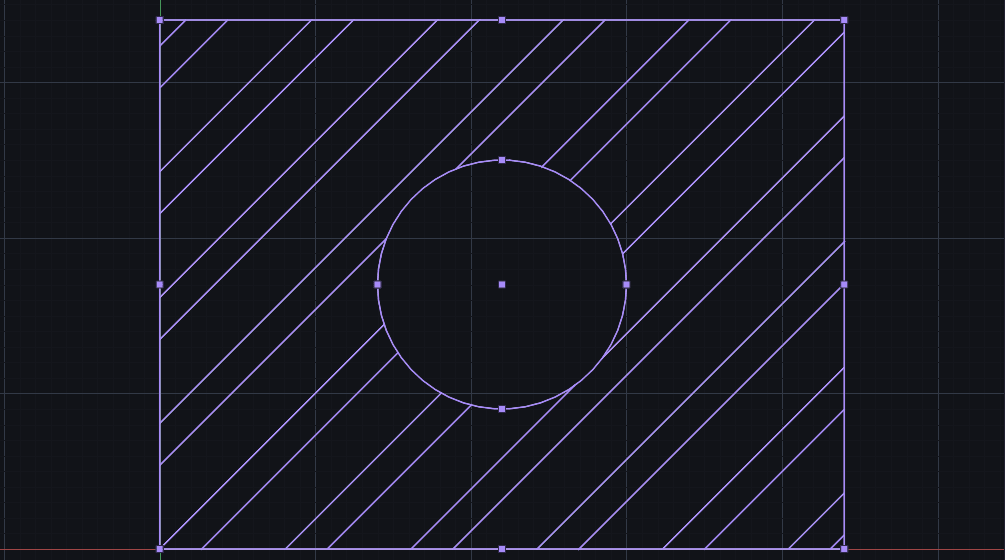
Change geometry by dragging the small squares on a selected object — move an end, slide a whole line, resize a circle — with snaps, Ortho and typed values all working as you drag.
Grips are the small squares that appear on a selected object. They are handles: drag one and the object changes. There is no command to start and no dialog to fill in, which makes them the quickest way to adjust something you have already drawn.
The important part is that they are not a rough-and-ready tool. The drafting aids keep working while a grip moves, so you can snap a line's end exactly onto a circle's centre, or type @0,-5 to nudge a corner precisely 5 down.
Prerequisites
- You can select objects — see Selecting Objects.
Where the grips are, and what each one does
Select an object, and squares appear at its ends, middles, centres or corners, depending on what kind of object it is.
| Object | Grips, and what each does |
|---|---|
| Line | Ends move that end · Middle moves the whole line |
| Circle | Centre moves it · Quadrants change the radius |
| Arc | Centre moves it · Ends change where it starts and stops · Quadrant changes the radius |
| Polyline | Each corner moves that corner |
Two ways to move a grip
1. Drag it
Press on the grip, drag, and release where you want it. Quick, visual, approximate — unless a snap catches, in which case it is exact.
2. Click it, then say where it goes
Click the grip once to pick it up. Then either click the destination, or type it:
@0,-5moves it 5 down from where it was.1200,600sends it to that exact coordinate.
See Typing Coordinates and Values for the full vocabulary.
This second way is usually better for exact work, because you get every typed form rather than whatever you can hit with the mouse.
The drafting aids keep working while you drag
This is what makes grips genuinely useful rather than merely handy:
- Object snaps pull the grip onto real points of other geometry — an endpoint, a midpoint, a centre, a crossing.
- Ortho (
F8) keeps the move exactly horizontal or vertical. - Polar (
F10) holds it to your angle steps. - Grid snap (
F9) lands it on the grid. - Holding
Shiftflips Ortho for that moment.
So "drag this wall's end until it meets that one exactly" takes about two seconds: select, drag the end grip, let the Endpoint snap catch, release.
Nudging without dragging
With objects selected and nothing running, the arrow keys nudge the whole selection by one grid snap step.
Handy for small corrections where dragging would overshoot.
When grips do not appear
| What you see | Why |
|---|---|
| A selection shows no grips at all | More than 1,000 objects are selected. Grips are suppressed above that, deliberately, to keep large selections responsive — the selection itself is fine |
| An object will not select | Its layer is locked |
| An object is not there to select | Its layer is off or frozen |
See Working with Layers.
Grips, or a proper command?
Grips are for quick, local, visual adjustments. Reach for a command when you want:
- The same exact change across many objects — Move, Copy, Rotate, Scale, Mirror.
- To set a length by number — Lengthen (
LE). - To drag a whole region's ends at once — Stretch (
ST), which moves the ends that fall inside a crossing box and leaves everything else anchored. - To reshape a polyline properly — Polyline Edit (
PE).
See Cleaning Up Sketches.
Next Steps
Selecting Objects
Pick objects by clicking, by window and crossing boxes, and by property — and learn to read what the drawing is telling you about what is hovered, highlighted or selected.
Moving and Duplicating a Selection
Cut, Copy, Copy with Base Point, Paste and Paste in Place — moving geometry between drawings, between windows and into other programs, and what travels with it.