
When a Sketch Won't Solve
Recognise the silent rollback that happens when a sketch's numbers cannot be satisfied even though nothing looks over-constrained, and recover from it.
Most constraint problems announce themselves. Add one dimension too many and the status bar says Over-constrained; make two rules outright incompatible on a pinned shape and it says Conflicting; leave a shape loose and it says how many degrees of freedom remain.
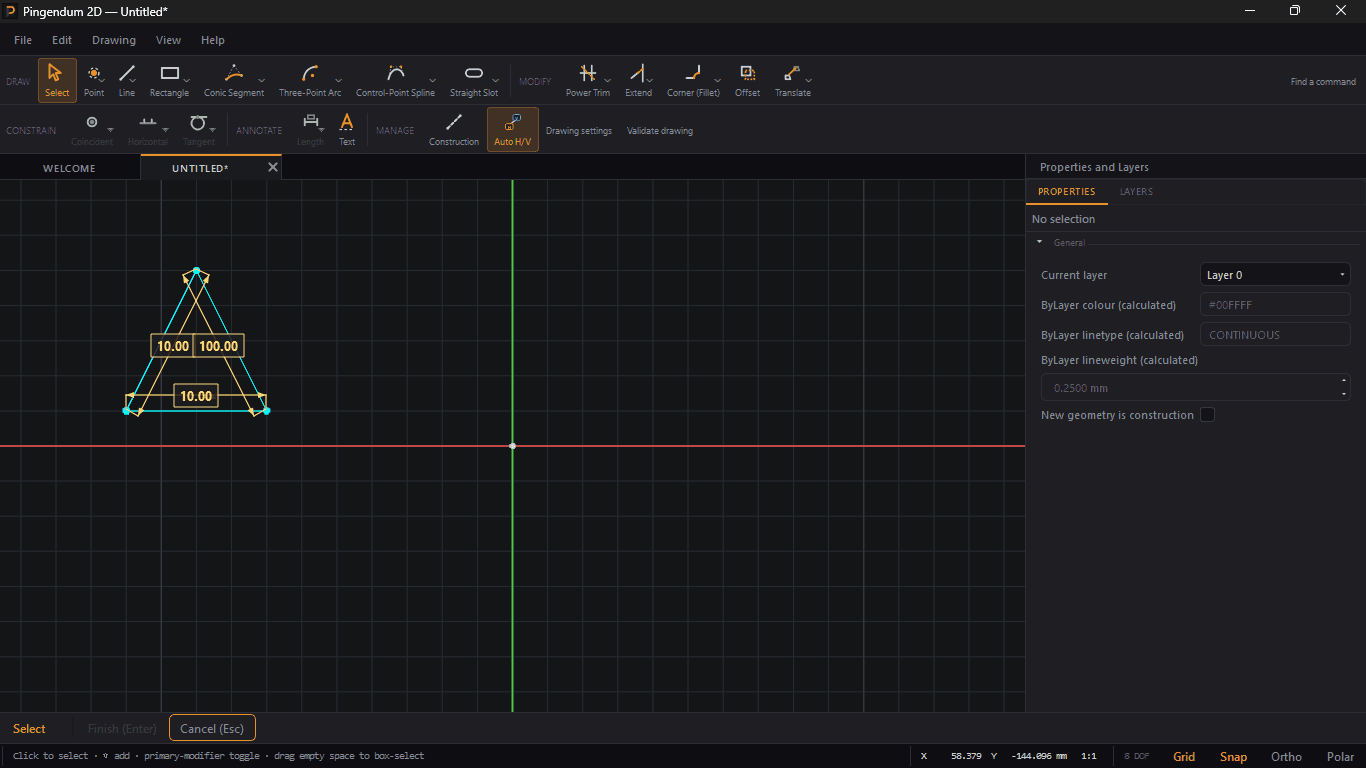
But there's a third kind of problem that says nothing at all: constraints that are individually reasonable and correct in number, yet cannot all be true at once. Give a triangle three side lengths of 10, 10 and 100 and no arrangement of points satisfies them — two short sides can't span a long one.
When that happens, the geometry simply stops responding. Understanding why is the difference between a confusing minute and a five-second fix.
Prerequisites
Before you begin, ensure that:
- You've completed Constraining a Sketch and understand the DOF indicator.
- You've read Diagnosing Sketches, which covers the over-constrained case this chapter is not about.
What Actually Happens
The solver runs a Newton-Raphson iteration to find parameter values satisfying every constraint, backed by a line search and a damped fallback when the plain step won't settle. When none of that works, it recognises the failure — internally it distinguishes an inconsistent system from one that merely didn't converge in the iteration budget.
Either way it does the same thing: it puts the parameters back exactly as they were and returns.
That rollback is deliberate. The alternative — leaving geometry at whatever half-solved position the last iteration reached — would scatter your sketch into a distorted mess. Restoring the last good state is the safer choice.
Warning: this particular failure is not reported
The status bar has four states, and all four are computed from the shape of the constraint system — how many rules there are and whether they overlap — not from whether the solver could actually satisfy them. It reads
N DOF,Fully constrained,Over-constrained (N redundant)orConflicting (N).
Conflictingonly appears once the sketch has no freedom left and a rule is still violated. A sketch that still has degrees of freedom is never described that way, however impossible its numbers are — so a triangle with sides of 10, 10 and 100 reports a plain DOF count, exactly like a healthy sketch.The solver does distinguish the failure internally, but nothing in the interface reads that result. There's no banner, no warning colour, and no change to the status bar.
How to Recognise It
The symptom is geometry that won't move.
- You type a new value into a dimension. The field accepts it. The shape doesn't change.
- You drag a point. It springs straight back.
- You add a constraint. Nothing visibly happens.
In each case the solver tried, failed, and restored the previous state. The dimension on the canvas shows your new value while the geometry still reflects the old one.
Telling it apart from the other states
| Status bar reads | Meaning | Where it's covered |
|---|---|---|
N DOF | Under-constrained — the shape can still move | Constraining a Sketch |
Fully constrained | Exactly enough constraints to pin the shape | Constraining a Sketch |
Over-constrained (N redundant) | More constraints than freedom; some restate others | Diagnosing Sketches |
Conflicting (N) | No freedom left, and a rule is still violated | Diagnosing Sketches |
An unsatisfiable sketch shows whichever of these the count implies — usually a plain DOF reading, since three impossible lengths on a triangle still leave it under-constrained. Nothing in the status bar distinguishes it from a healthy sketch.
The distinction that matters is between the last row and this chapter's subject. Conflicting means the sketch has been pinned down completely and a rule still can't hold — the solver can name the offending constraints, and Validate drawing will list them. This chapter is about the case before that point, where there is still freedom in the sketch, so no rule looks redundant and nothing is flagged. The numbers simply cannot be met.
Recovering
Because the rollback already restored the last good geometry, you don't need to repair anything — you only need to remove whatever you were trying to apply.
Undo. Ctrl+Z steps back the edit. This is the right move when you've just typed a value or added a constraint and the shape refused to follow.
Delete the constraint. If the impossible rule is already applied, select it in the viewport and delete it. Dimensions are where impossible values almost always live, and they're the easiest to spot — their value is drawn right there on the canvas.
Change the value instead of removing it. An impossible dimension is often nearly right — a decimal point in the wrong place. Editing the value in place is quicker than deleting and re-applying.
Steps
- Notice that geometry has stopped responding to a change.
- Press
Ctrl+Zto back out the edit that failed. - Check the shape moves again — drag a point and watch it follow.
- Re-apply the constraint with a value the geometry can actually reach.
Building an Unsatisfiable Sketch on Purpose
Worth doing once, so you recognise the symptom later:
- Draw a triangle from three lines, corners joined.
- Apply Length
10to one side, and Length10to another. - Apply Length
100to the third.
The third dimension is accepted, the canvas shows 100, and the triangle does not change. Two sides of 10 cannot span 100, so there's no solution — the solver rolls back and stays quiet. The status bar goes on reporting a plain DOF count throughout.
Press Ctrl+Z, or edit that 100 down to something under 20, and the shape snaps into place.
How This Interacts With Other Tools
- Typed values while drawing. A typed length or angle that would over-constrain is handled separately, by the conflict policy in Reference (Driven) Dimensions. That path does act — it peels the new dimension back off. It only applies to values typed during a draw, not to constraints added afterward.
- Validate Sketch. It checks geometry — degenerate curves, gaps, duplicates — and reports the solver's count status. It does not test whether the constraint values are achievable, so a clean report doesn't rule this out.
Note: a gap worth knowing about
The solver distinguishes five outcomes —
Converged,ConvergedUnder,DidNotConverge,InconsistentandTooManyUnknowns— but no interface code reads that result. Everything above is a description of how to work around the absence of that signal rather than how to read it.If a future build surfaces the solve result, this chapter should be revisited — recognising a failed solve would become a matter of reading a message instead of noticing that nothing moved.
Next Steps
You now know how to:
- Recognise a failed solve from geometry that stops responding
- Understand why the status bar still reads a healthy DOF count
- Recover with Undo, or by deleting or editing the impossible dimension
- Tell this apart from the over-constrained and under-constrained states
Next: Reading Your Sketch
Diagnosing Sketches: Over-Constrained Conflicts and Validation
Recognize and resolve an over-constrained sketch, and run the Validate drawing checker to find geometry problems before they reach an export.
Reading Your Sketch: Appearance, Degrees of Freedom, and Selection
Understand where a curve's colour, weight and dash come from, how Pingendum marks what you're pointing at, and where to look for the sketch's solver state.