
The Complete Constraint Toolkit
The eleven constraints beyond the essentials — Parallel, Perpendicular, Tangent, Equal, Concentric, Collinear, Point-on-Line, Midpoint, Symmetric, Diameter, and Angle.
Constraining a Sketch covered the six constraints you'll use in nearly every sketch: Coincident, Horizontal, Vertical, Distance, Length, and Radius. This chapter fills in the rest of the palette — eleven more constraints for relationships those six can't express, like keeping two lines parallel or making a point sit exactly at another line's midpoint.
You won't need all of these in every sketch. Reach for this chapter when a specific geometric relationship comes up that the essentials don't cover.
Prerequisites
Before you begin, ensure that:
- You've completed Constraining a Sketch and are comfortable reading the DOF indicator and applying Length/Radius via the inline number prompt.
A Shared Rule: Selection Requirements Are Exact
Every constraint needs your selection to match its required count and type exactly — not "at least," but exactly, with the sole exception of Horizontal and Vertical, which accept one or more lines at once.
Pingendum shows you this by greying out whatever doesn't fit. A constraint is enabled only when the current selection matches what it needs, and it is disabled — visible but not clickable — the rest of the time. So the toolbar is already answering the question "what can I do with this?" before you click anything.
Two ways to read that answer:
- Hover a greyed-out button. Its tooltip gives the reason: "Select the geometry to apply this to." when nothing is selected, or "This does not apply to the current selection." when the type or the count is wrong.
- Right-click your selection. The context menu opens in three groups — the constraints, then the modify tools, then actions on the selection itself. It projects the same buttons with the same enabled states, so it shows the whole palette and which parts of it are live, side by side.
With two lines picked, Horizontal, Vertical, Parallel, Perpendicular, Equal, Collinear and Fix are available, while Coincident, Tangent, Concentric, Midpoint and Symmetric are dimmed — each of those wants a point, or a curve, that isn't in the selection. Swapping a line for a curve enables the curve ones; the point ones are a different matter, covered in the next section.
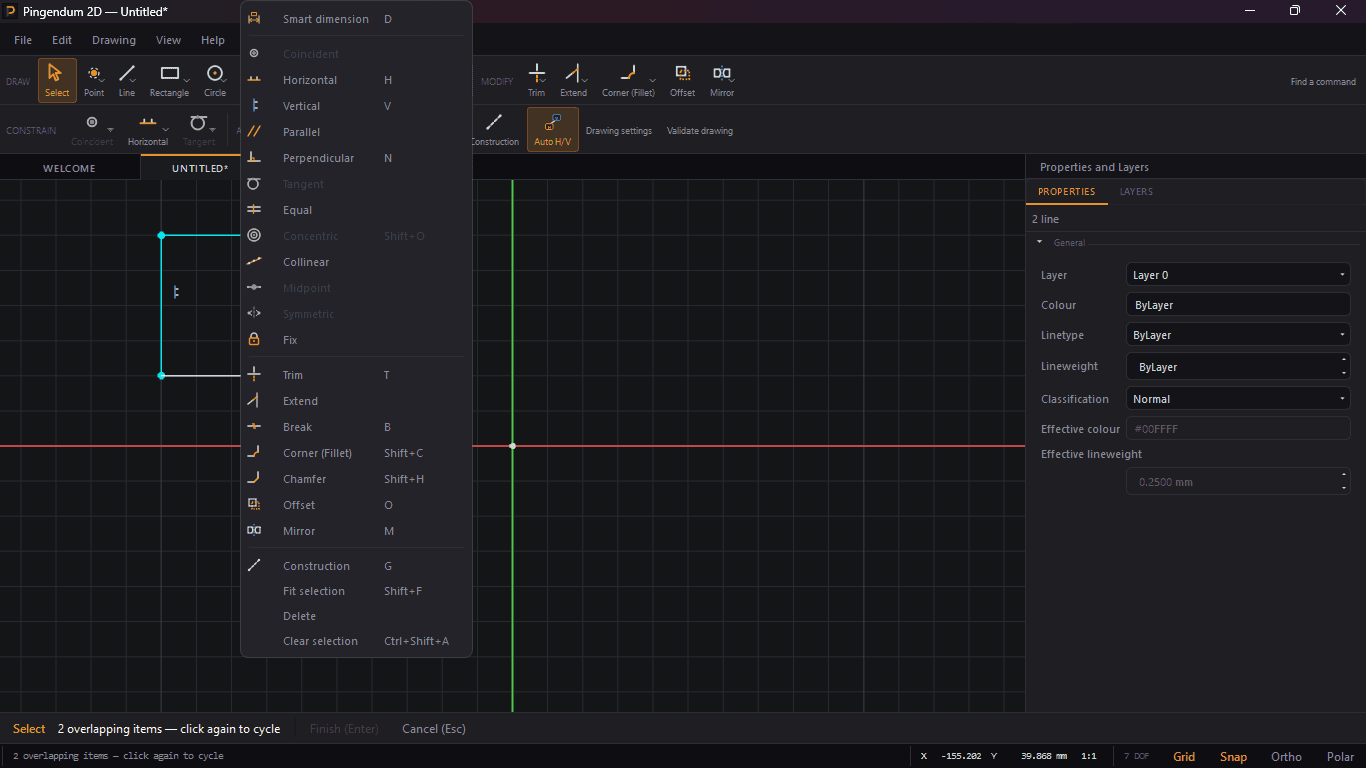
The menu is also the most reliable place to read a shortcut, since it shows the binding next to each entry — and most constraints show nothing at all, because they have no key.
The Constraints That Need a Point
Six commands ask for one or more points in the selection: Coincident, Point-on-Line, Midpoint, Symmetric, Distance — which is point-to-point only, it accepts no other pairing — and the coordinate dimensions, X coordinate and Y coordinate.
Known limitation
You cannot select the endpoint or corner of drawn geometry. Clicking a corner selects the line that owns it. Dragging a selection box around a corner selects nothing. Clicking repeatedly to cycle through overlapping items cycles between the two owning lines and never reaches the vertex between them.
Because these constraints will not enable until a point is in the selection, and geometry drawn with the shape tools offers no way to put one there, they cannot currently be applied to the corners and endpoints of a drawn profile. The buttons stay greyed out no matter what you pick.
This is a limitation of the current build, not a selection technique you haven't found yet. It has two consequences worth knowing before you plan a sketch:
- Locating a feature is hard. Positioning a hole relative to an edge normally means a point-to-point or point-to-edge distance. Neither is reachable. Distance rejects a line-and-circle selection with "This does not apply to the current selection."
- A connected profile cannot reach
Fully constrainedby these means. The only positional constraint you can reach is Fix, and Fix pins whole entities — four constraints for a line — so applying it to an already-dimensioned shape reportsOver-constrainedrather than locking it down. See Fix below.
Use dimensions on the geometry itself — Length, Radius, Diameter, Angle, and the line-to-line relationships — which need no points and work normally.
Note that two of the six "essential" constraints from Constraining a Sketch — Coincident and Distance — fall in this group. That chapter's guidance on them is affected in the same way.
Geometric Constraints
These constraints define a relationship between entities — no numbers involved.
| Constraint | Shortcut | Selection |
|---|---|---|
| Parallel | — | Exactly 2 lines |
| Perpendicular | N | Exactly 2 lines |
| Collinear | — | Exactly 2 lines |
| Tangent | — | 2 curves — any pairing except two circles |
| Equal | — | 2 lines (equal length), or 2 circles/arcs (equal radius) |
| Concentric | Shift+O | Exactly 2 circles/arcs |
| Point-on-Line | Shift+L | Exactly 1 point and 1 line — not reachable on drawn geometry, see above |
| Midpoint | — | Exactly 1 point and 1 line — not reachable on drawn geometry, see above |
| Symmetric | — | Exactly 2 points and 1 line — not reachable on drawn geometry, see above |
Parallel, Perpendicular, Collinear
These three share the same selection rule — exactly two lines — and just apply a different relationship between them. Parallel forces the two lines to point the same direction; Perpendicular forces a 90° angle between them; Collinear forces them onto the same infinite line, even if their endpoints don't touch.
Tangent
Tangent works between more pairings than the table above suggests. Select two curves and apply; Pingendum picks the right tangency variant from what you selected:
- line + arc, line + circle, arc + arc, circle + arc
- line + conic segment
- line + spline and arc + spline — applied at whichever spline end faces the other entity
The one exception is two circles, which has no tangency variant.
Note
If you select two circles and try Tangent, Pingendum rejects it with a status-bar message. Use Concentric instead if that's the relationship you actually want. Holding two circles a set distance apart would need a Distance between their centres, which is not currently reachable — see The Constraints That Need a Point.
Equal
Equal behaves differently depending on what you select: two lines get equal length, while two circles, two arcs, or one circle and one arc get equal radius. There's no separate button for each — Pingendum reads your selection and picks the right variant automatically.
Concentric
Forces two circles or arcs to share the same center point, regardless of their radii.
Point-on-Line vs. Midpoint
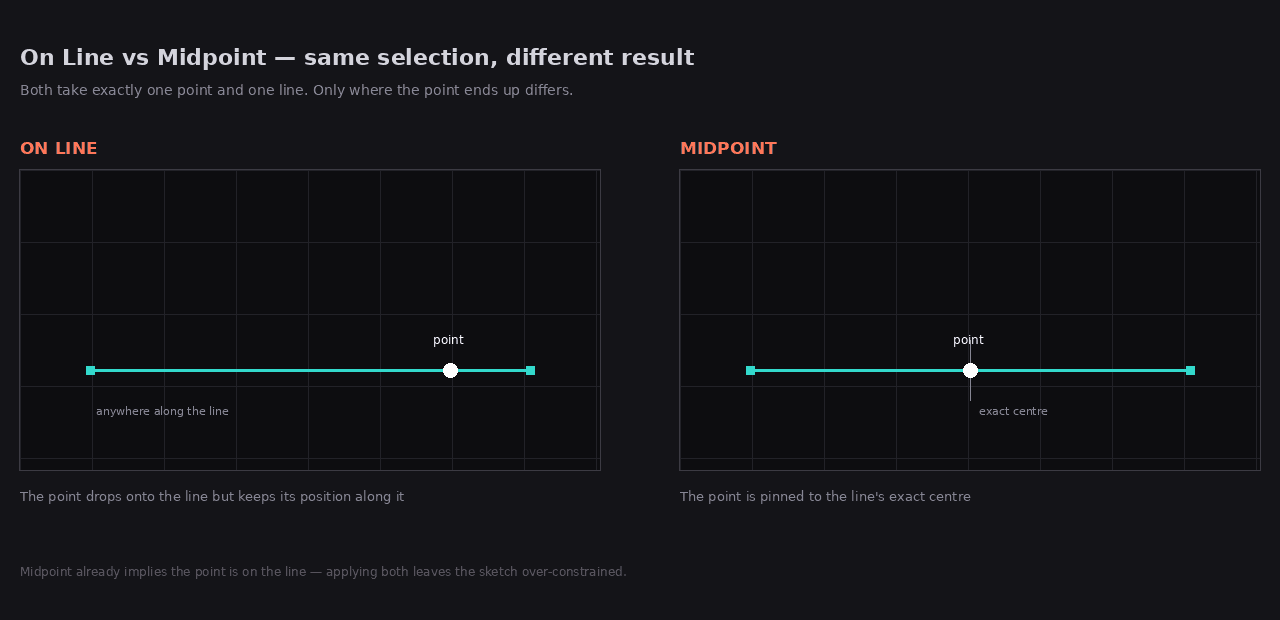
Both take the same selection — one point, one line — and constrain differently:
- Point-on-Line allows the point to sit anywhere along the line (or its extension).
- Midpoint pins the point to exactly the line's center.
Midpoint is the stricter of the two. Because it pins the point to the line's centre, it already places the point on the line, so applying both to the same pair leaves the sketch over-constrained — if you're switching from one to the other, select the first constraint and delete it before adding the second.
Not currently reachable
Both need a point in the selection, and the endpoints of drawn geometry cannot be selected — see The Constraints That Need a Point. The distinction below is real and the solver implements both, but there is presently no way to pick the point either one needs. The figure shows the two outcomes, not a sequence you can reproduce in this build.
Symmetric
Selection order isn't important, but the types are: exactly two points and one line. The line acts as a mirror axis, and Pingendum forces the two points to sit as mirror images of each other across it.
Like Point-on-Line and Midpoint, Symmetric needs points it cannot currently be given — see The Constraints That Need a Point. To keep a shape balanced about a centreline today, reach for the Mirror tool instead, which copies geometry across an axis rather than constraining it there.
Fix
Selection: any geometry. Fix is the odd one out — it takes whatever you have selected rather than a specific count and type, and it pins it where it is.
It applies to whole entities, never to individual points. Clicking a corner selects the line that owns it, so fixing "a corner" fixes both ends of that line — which is usually two constraints more than a sketch that's already dimensioned needs. Constraining a Sketch covers how that plays out.
Fix is a toggle. Apply it to something already fully fixed and it unfixes it, with the status bar reading Unfixed rather than Fixed. There's no separate release command — the same button does both. With a mixed selection, where some things are fixed and some aren't, it fixes everything.
Dimensional Constraints
These add a specific number, using the same inline prompt behavior as Length and Radius from Constraining a Sketch: a small input box appears on the canvas pre-filled with the current measured value, Enter to commit, Escape to cancel.
| Constraint | Shortcut | Selection |
|---|---|---|
| Diameter | Shift+R | Exactly 1 circle or arc |
| Angle | — | Exactly 2 lines |
Diameter
The same selection as Radius (one circle or arc), just expressed as diameter instead of radius — useful when your source drawing or spec sheet lists diameters, since you don't have to mentally halve the value first.
Angle
Select two lines and apply Angle; the prompt pre-fills with the current angle between them in degrees. This is the constraint to reach for when two edges need to meet at something other than a right angle — a wedge shape, a dovetail, anything with an intentional slant.
Reaching Constraints Without a Shortcut
Most of this chapter's constraints have no keyboard shortcut. Earlier builds gave them single letters, but those collided with the drawing tools — T was both Tangent and Trim, M both Midpoint and Mirror — and the collisions were resolved by withdrawing the constraint keys rather than remapping them.
Only Horizontal (H), Vertical (V), Perpendicular (N), Concentric (Shift+O) and On Line (Shift+L) have keys. For everything else, click the button in the constraint toolbar, or press Ctrl+Shift+P and search for the constraint by name.
Next Steps
You now know how to:
- Apply the entity-to-entity constraints — Parallel, Perpendicular, Collinear, Tangent, Equal, Concentric — and the dimensional ones, Diameter and Angle
- Tell Point-on-Line and Midpoint apart, and Distance/Length/Diameter apart from each other
- Recognise which constraints need a point, and why that currently puts them out of reach on drawn geometry
- Reach a constraint that has no shortcut, from the toolbar or by name
Between this chapter and Constraining a Sketch, you have the whole constraint palette Pingendum offers, and a clear line between the parts of it you can drive today and the parts waiting on selectable vertices. The next chapter turns to a different kind of sketch editing: transforming and duplicating geometry you've already drawn, rather than adding it from scratch.
Cleaning Up Sketches
Edit geometry you've already drawn — trim and extend curves, break them apart, round or bevel corners, and create parallel offsets.
Transforming and Duplicating Sketch Geometry
Copy or reposition existing sketch geometry with Mirror, Translate, Rotate, Scale, and Symmetry, instead of redrawing it by hand.