
Starting a Sketch
Learn what a new drawing gives you, and get familiar with the parts of the workspace you'll use while sketching.
A new drawing opens ready to sketch in — there is no mode to enter and no plane to pick. This chapter walks through what a fresh drawing gives you and gets you oriented before you draw anything.
Prerequisites
Before you begin, ensure that:
- You've completed Getting Started and have a drawing open in the main workspace.
Starting the Sketch
Create a new drawing. Pingendum opens it with an empty sketch ready for geometry, and the Select tool active.
There is no separate "start a sketch" step: the drawing is the sketch. Everything you draw goes onto it, and everything the solver reports — degrees of freedom, constraint conflicts, validation results — is reported about it.
What a New Drawing Gives You
A handful of things are true the moment a drawing opens:
- The view looks straight down at the drawing. Panning and zooming work normally; there is no orbiting, because there is nothing to orbit.
- A status message confirms the current tool and what it expects from you next.
- The drawing toolbar sits under the menu bar. The Select tool is active by default — the actual drawing tools are covered in the next chapter.
- A grid and snap bar appear along the bottom of the viewport, along with toggle buttons for them.
- The Properties and Layers dock sits on the right, opened from View → Panels (
Ctrl+1). With nothing selected it shows the drawing's current defaults — layer, colour, linetype, lineweight. Select something and it shows that object's properties instead. You'll rely on it in the next chapter; for now just note that it's there. - The status bar along the bottom reports the cursor position, the drawing scale, and your degrees of freedom.
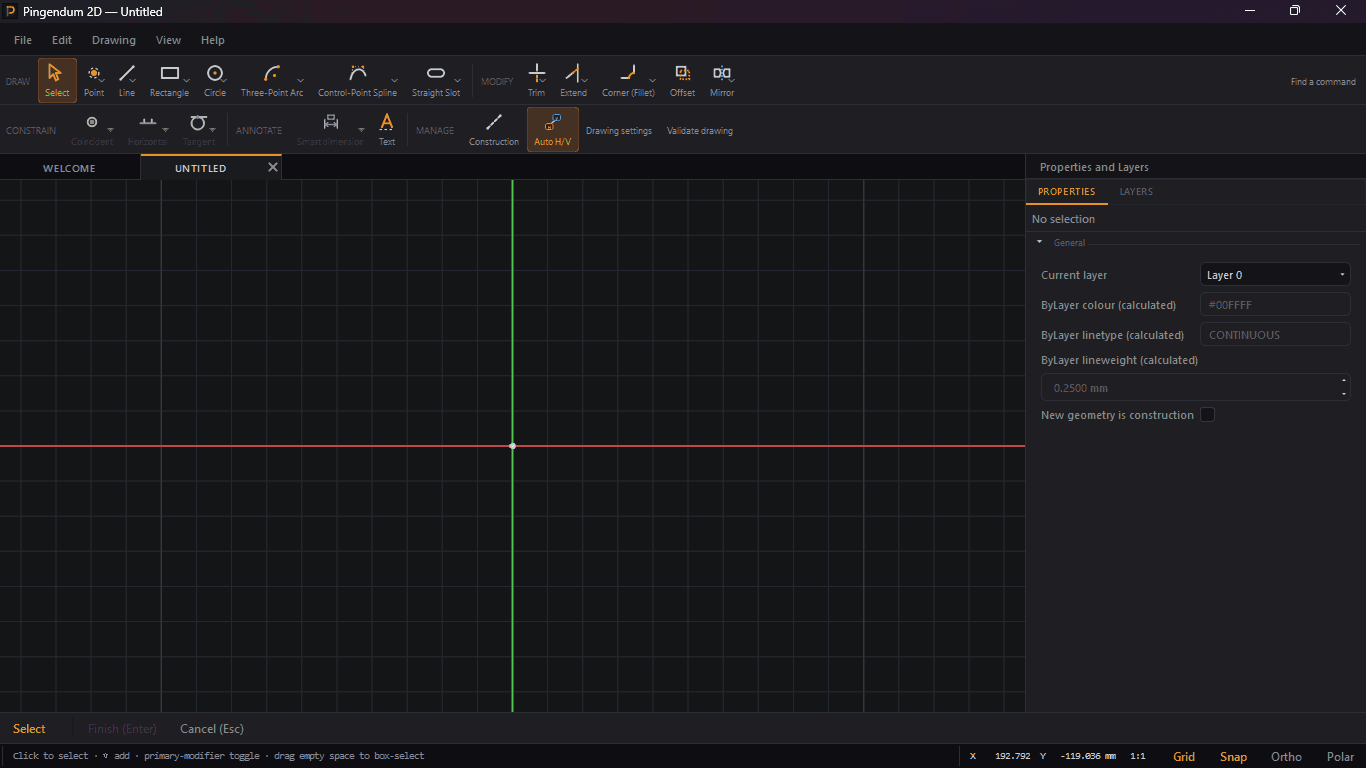
Nothing should be drawn yet — the point of this chapter is just to get you oriented. Drawing starts in the next chapter.
Committing and Discarding Work
Your work is committed as you go, rather than at the end of a mode:
- Every completed operation is a single undo entry.
Ctrl+Zsteps back through them, andCtrl+Ysteps forward again (Ctrl+Shift+Zon macOS). - Pressing
Esccancels the tool you're in the middle of, discarding only the geometry it hadn't committed yet. - Saving writes the drawing to disk. Saving and reopening are covered in Saving and Managing Projects.
Next Steps
You now know how to:
- Open a drawing that is ready to sketch in
- Recognize the parts of the workspace you'll use while sketching
- Commit work as you go, and back out of a tool you didn't mean to start
With a blank drawing in front of you, you're ready to actually draw something.
Next: Drawing Basic Shapes